

Prerequisites
- A Porter project
- An AWS cluster where you want to run sandboxes. We recommend creating a new AWS cluster for sandboxes so sandbox workloads are isolated from your other running workloads.
A dedicated cluster is not required, it’s a defense-in-depth recommendation. Sandboxes often run untrusted code (end-user submissions, LLM agent output), and running them in their own cluster isolates that code from your main workloads as much as possible. Sharing a cluster with your other workloads is reasonable for development and testing; for production workloads that run untrusted code, we recommend the separate cluster.
Enable sandboxes
1
Enable sandboxes from the Sandbox tab
Sandboxes can only be enabled on AWS clusters.In the Porter Dashboard, navigate to the Sandbox tab for the AWS cluster where you want to run sandboxes and click Enable sandboxes.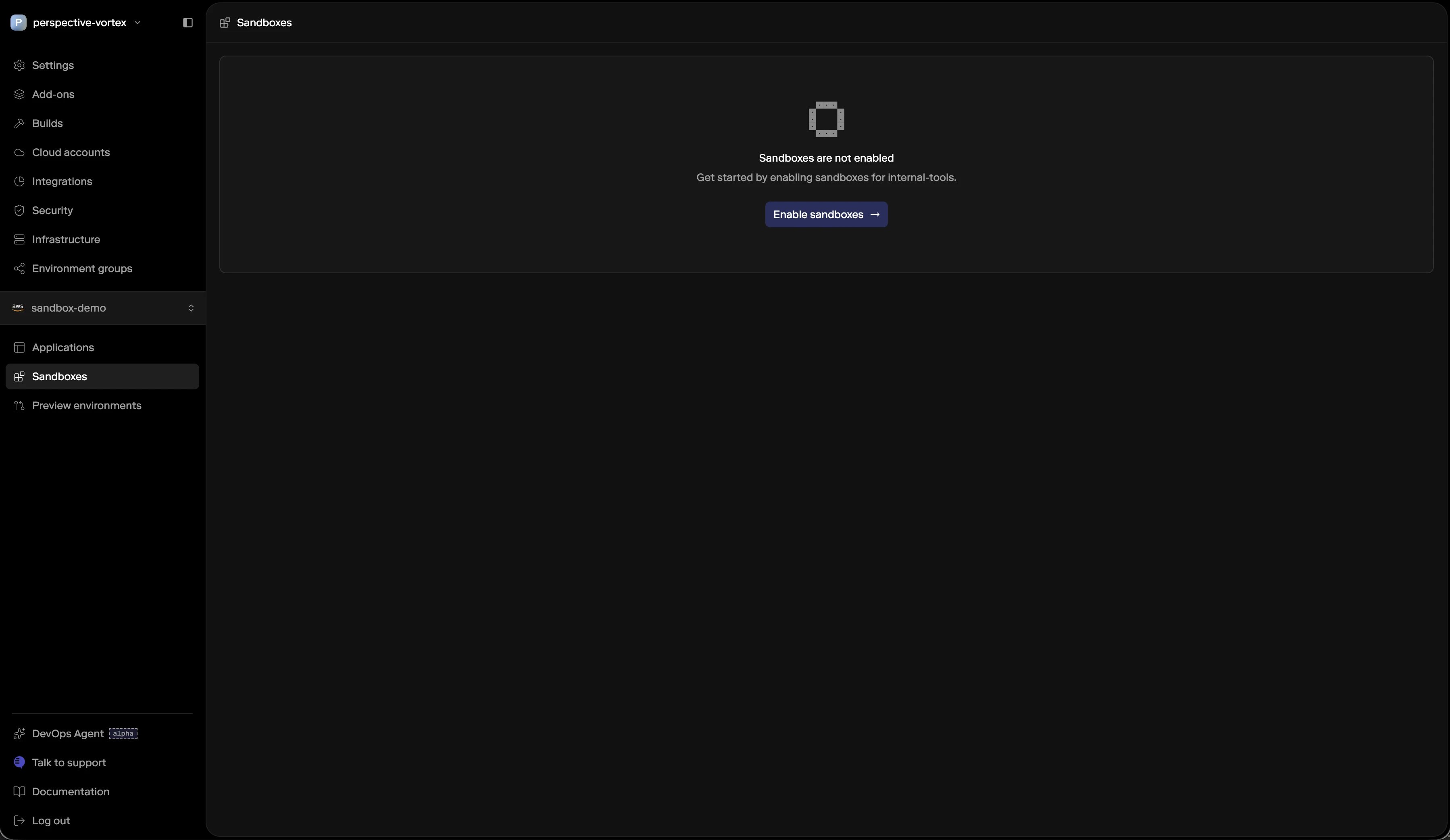
porter config set-cluster:--enable-sandboxes when creating a new cluster with porter clusters create to provision it with sandboxes already enabled. See the Sandboxes CLI guide for porter sandbox status and porter sandbox disable.2
Install a Sandbox SDK in your application
Add either the Python or TypeScript Sandbox SDK to the application that will create and manage sandboxes.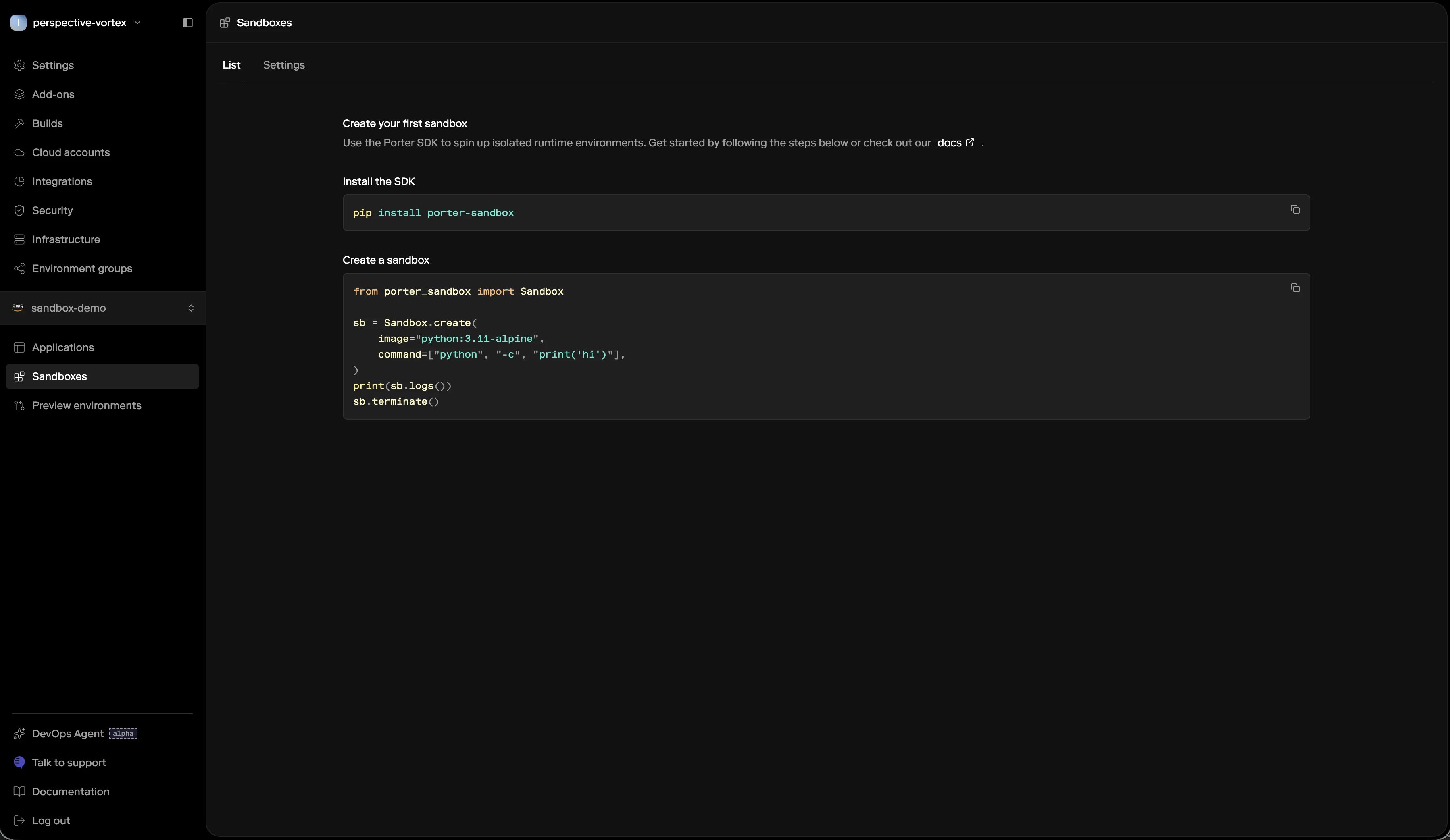
3
Write your first sandbox call
In your application code, create a sandbox, execute a command, read the output, and terminate the sandbox when the work is done. The examples below show the smallest end-to-end flow.
4
Deploy your application to the sandbox cluster
For now, we recommend deploying the application that uses the SDK as a Porter Application in the same cluster where you want to run sandboxes.
Calling from outside the cluster
The SDK connects to the in-cluster Sandbox API automatically when your application runs as a Porter Application in the same cluster where sandboxes are enabled. To invoke sandboxes from anywhere else, authenticate with a Porter API token and tell the SDK which cluster to target:dashboard.porter.run automatically. Replace <cluster-id> with the cluster where sandboxes are enabled. You can copy the prefilled snippet from the cluster’s Sandbox tab, or look up the ID with the Porter CLI:
PORTER_SANDBOX_BASE_URL or pass base_url (Python) / baseUrl (TypeScript) to the client constructor. These take precedence over everything above.
Python quickstart
Install the SDK in your application image:TypeScript quickstart
Install the SDK in your application image:Keep a sandbox alive for exec
A sandbox lives as long as its main process: the image’s default entrypoint, or the command you pass at create time. When that process exits, the sandbox moves tosucceeded (exit code 0) or failed (nonzero), and it stops accepting exec calls.
An image whose default command exits immediately reaches succeeded within a few seconds of starting. If you want to create a sandbox first and exec into it later, give it a long-running main process, then terminate it when the work is done:
Set environment variables
Pass environment variables at create time. The SDKs take anenv map, and the CLI takes a repeatable --env KEY=VALUE flag:
Inject environment groups
Instead of passing variables one at a time, you can inject an entire environment group from the cluster at create time. Any kind of environment group works, including groups synced from Doppler, Infisical, or a datastore. The SDKs take anenv_groups list, and the CLI takes a repeatable --env-group flag:
env entry wins over any group value.
Keep secrets out of exec commands
Porter by default records the command line of every exec in the sandbox’s activity feed, so you can audit what ran (or failed) in a sandbox. Don’t pass secrets such as API keys as exec arguments. Set them as environment variables at create time, or write them to a volume and read the file from inside the sandbox. To stop recording arguments, open Settings in the Sandbox tab and turn off Record command arguments under Command history. Porter then stores only the program name of each exec and recordspsql postgres://user:secret@db.internal/app as psql [omitted 1 redacted arg]. Delete command history on the same page wipes the arguments already recorded for the cluster.
Limit sandbox lifetime with a TTL
To guarantee a sandbox cleans itself up even if its main process never exits, set a TTL at create time. The SDKs takettl_seconds, and the CLI takes a --ttl Go duration. The TTL counts from creation; once it elapses, Porter terminates the sandbox the same way an explicit terminate does:
Use custom images
Sandboxes run any container image, so you can bake in the tools your workload needs (language runtimes, CLIs, agents) instead of installing them at runtime.Pin an image by digest
Image references accept a tag or a digest (repo@sha256:<digest>). A tag can point to different content over time, so pin the digest when your sandboxes need to run the exact same image on every create:
Private images
Private images are supported. Push your image to the ECR registry in the AWS account associated with your sandbox cluster, and sandboxes on that cluster can pull it without extra credential configuration. The easiest way to get an image there isporter registry push, which exchanges registry credentials automatically and creates the remote repository on the first push:
--build, the image is built from the given context directory on your machine before it is pushed, targeting linux/amd64 by default. In CI or scripts, add --json to capture the fully qualified pushed reference and pass it straight to sandbox creation:
porter registry push reference for all flags, including multi-arch builds and selecting between multiple linked registries.
Sandboxes can only pull private images from the ECR registry in the sandbox cluster’s AWS account. Images in other private registries (Docker Hub, GHCR, or ECR in a different account) need to be pushed to that registry first -
porter registry push handles this in one step.Run an agent inside a sandbox
A sandbox can host an entire agent, not just execute tools for an agent that runs elsewhere. Two patterns are common:- Sandbox as a tool: your agent’s control loop and model calls run in your application, and the agent uses the sandbox to execute code or commands as a tool. This is the exec flow shown above.
- Agent in the sandbox: the whole agent, its control loop and its model calls, runs inside the sandbox. Bake your harness into a custom image, inject the model API key at create time, and run it as the sandbox’s main process. Sandboxes reach the public internet by default, so an in-sandbox agent calls a hosted model API directly.
Use tags to identify sandboxes
Tags make it easier to find sandboxes created by a workflow:Next steps
- Use Sandbox Networking to serve sandboxes over HTTPS on your own domains.
- Use the sandbox CLI guide to enable sandboxes on a cluster, list, inspect logs, exec into, monitor CPU and memory usage of, and terminate sandboxes.
- Use the Python Sandbox SDK quickstart for Python services.
- Use the TypeScript Sandbox SDK quickstart for Node.js and TypeScript services.