

Enabling the Infisical integration
The Infisical integration is enabled per cluster.- From the Porter dashboard, navigate to the Integrations tab.
- Find Infisical in the list and toggle it on.
Adding an Infisical environment group
Each environment group corresponds to a path within a specific environment of an Infisical project.Create a machine identity in Infisical
Porter authenticates with Infisical using a machine identity. In your Infisical project:- Create a machine identity and assign it the Viewer role on the project.
- Generate a Client ID and Client Secret for the identity.
Create the environment group in Porter
- On the Infisical integration page in Porter, click Add Infisical env group.
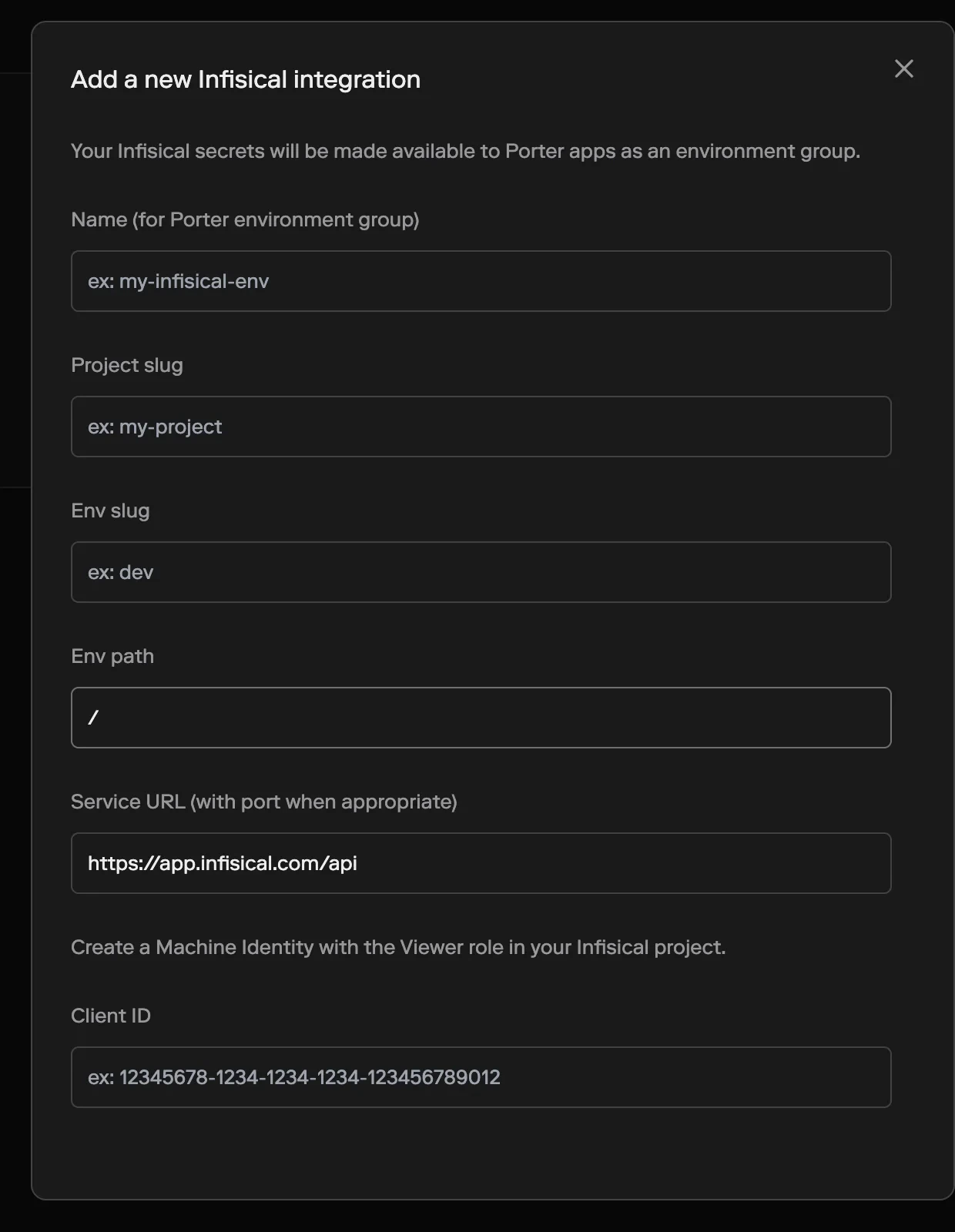
- Fill in the form:
- Name (for Porter environment group) — the name you’ll use to reference this environment group inside Porter (e.g.
production-infisical). - Project slug — the slug of the Infisical project to sync from.
- Env slug — the environment to pull from (e.g.
dev,staging,prod). - Env path — the secret path within the environment. Defaults to
/. - Service URL — the Infisical API URL. Defaults to
https://app.infisical.com/api. Set this to your self-hosted Infisical URL if you’re not using Infisical Cloud. - Client ID — the client ID of the machine identity you created.
- Client Secret — the client secret of the machine identity.
- Name (for Porter environment group) — the name you’ll use to reference this environment group inside Porter (e.g.
- Click Add Infisical env group.
Syncing to an application
Infisical environment groups work like any other Porter environment group. You can sync them to an application:- From the dashboard, on the application’s Env Groups tab, add the Infisical group and click Update app.
- From
porter.yaml, add the group’s name to theenvGroupsfield:
Infisical environment groups are read-only in Porter. Values are fetched from Infisical and cannot be edited from the Porter dashboard. To change a secret’s value, update it in Infisical — the change will propagate to your cluster automatically.
Deleting an Infisical environment group
To stop syncing an Infisical environment:- Open the environment group in Porter.
- Go to the Settings tab and click Delete.