

Enabling the Doppler integration
The Doppler integration is enabled per cluster.- From the Porter dashboard, navigate to the Integrations tab.
- Find Doppler in the list and toggle it on.
Adding a Doppler environment group
Each environment group corresponds to a single Doppler config (e.g.dev, staging, production).
Generate a Doppler service token
In the Doppler dashboard, create a service token for the project and config you want to sync. Service tokens are read-only by default, which is the correct scope for Porter. The token will be prefixed withdp.st..
Create the environment group in Porter
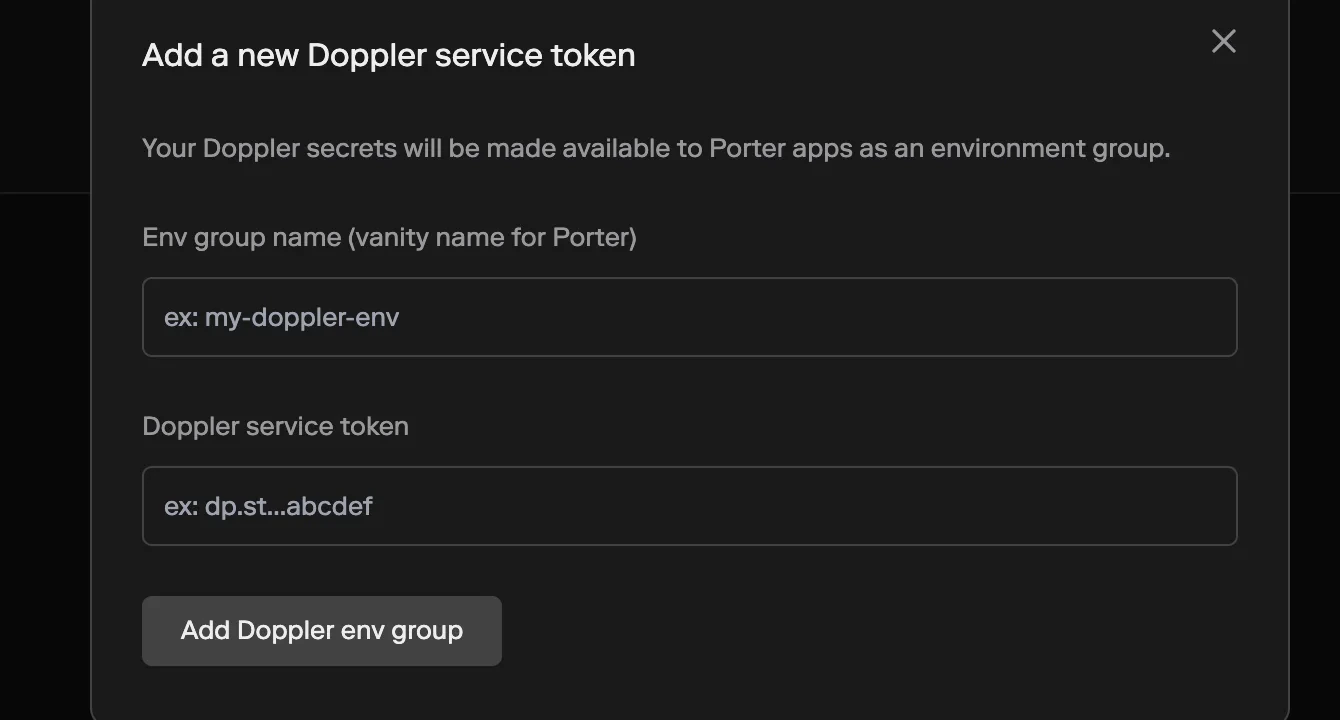
- On the Doppler integration page in Porter, click Add Doppler env group.
- Fill in the form:
- Env group name (vanity name for Porter) — the name you’ll use to reference this environment group inside Porter (e.g.
production-doppler). - Doppler service token — the
dp.st.…token you generated above.
- Env group name (vanity name for Porter) — the name you’ll use to reference this environment group inside Porter (e.g.
- Click Add Doppler env group.
Syncing to an application
Doppler environment groups work like any other Porter environment group. You can sync them to an application:- From the dashboard, on the application’s Env Groups tab, add the Doppler group and click Update app.
- From
porter.yaml, add the group’s name to theenvGroupsfield:
Doppler environment groups are read-only in Porter. Values are fetched from Doppler and cannot be edited from the Porter dashboard. To change a secret’s value, update it in Doppler — the change will propagate to your cluster automatically.
Rotating the service token
If you regenerate a service token in Doppler, update Porter so it can keep syncing:- Open the Doppler environment group in Porter.
- Go to the Settings tab.
- Under Credentials, click Rotate and paste the new service token.
Deleting a Doppler environment group
To stop syncing a Doppler config:- Open the environment group in Porter.
- Go to the Settings tab and click Delete.