

Quick Installation uses Owner permissions to set up Porter. You can
optionally specify the minimum IAM policies for provisioning both a cluster
and registry.
Prerequisites
Enabling GCP APIs
To use Porter on GCP, you must first enable some APIs on your project.- Navigate to the APIs & Services tab of your project.
- Click on the Enable APIs and Services button at the top. This will bring up a catalog of APIs that you can enable on GCP. Enable the following five APIs:
- Compute Engine API
- Kubernetes Engine API
- Cloud Resource Manager API
- Container Registry API
- Artifact Registry API
Creating a Service Account
- First, go to your Google Cloud console and navigate to IAM & Admin -> Service Accounts:
- Select Create Service Account:
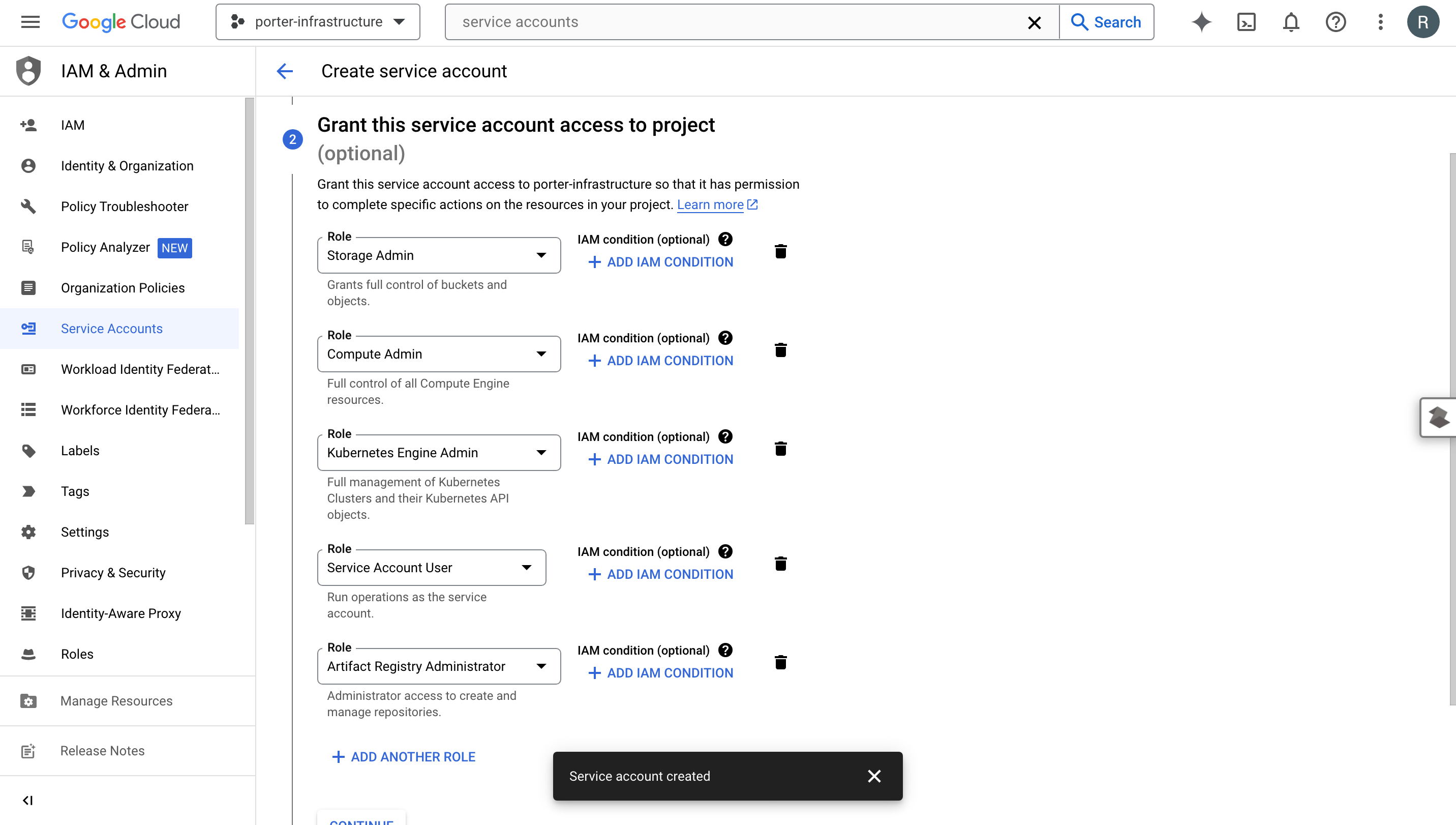
- After naming your service account, grant the service account these five permissions:
- Cloud Storage > Storage Admin
- Compute Engine > Compute Admin
- Kubernetes Engine > Kubernetes Engine Admin
- Service Accounts > Service Account User
- Artifact Registry > Artifact Registry Administrator
- Once the service account has been created, under Actions select Manage keys.
- Select ADD KEY -> Create new key and then choose JSON as your key type. After creation, your JSON key will automatically be downloaded as a file. You will need this key later.
Provisioning a cluster
- Select “GCP” from the cloud providers:
- Click “Drop a GCP Service Account JSON here, or click to browse.” and upload the JSON key file from the Prerequisites step, then click “Continue”
- Select the region that you would like to provision in, then click “Provision”
- Before you are able to provision a cluster you must pass all provision checks. Troubleshooting steps will be shown on the dashboard if you encounter these errors.
- Once you click Provision, Porter will start spinning up the requisite infrastructure in your account. This may take up to 30 minutes.