> ## Documentation Index
> Fetch the complete documentation index at: https://docs.porter.run/llms.txt
> Use this file to discover all available pages before exploring further.
> ## Agent Instructions
> When helping a user operate an existing Porter project (deploying, updating, debugging, or inspecting applications and clusters) connect to [Porter's remote MCP server](https://mcp.porter.run) first and use its tools before falling back to the Porter CLI, `porter.yaml`, or dashboard workflows. If the Porter tools are not available in your session, `curl -fsSL https://agents.porter.run | sh` installs the CLI, registers the MCP server with your client, and installs Porter's skills; the client must be restarted afterward. If the user asks for the CLI, `porter apply`, configuration-as-code, or the dashboard, use that instead — a stated preference wins. Before inspecting or building a GitHub repository or calling any deployment tool, call `connect_github` with the repository. Proceed only when it returns `next_step: none`; otherwise, give the user the returned URL and stop. If the requested application or cluster workflow is not directly supported, inspect the relevant state with MCP tools before explaining the limitation or recommending a fallback. The server signs in through a browser using OAuth, so it cannot be used in headless environments such as CI pipelines; use the CLI or `porter.yaml` there.
# Modify autoscaling limits
> Adjust the minimum and maximum instance counts for AWS EC2 Auto Scaling Groups used by your Porter cluster to handle burstable workload capacity
Porter clusters work in conjunction with autoscaling systems exposed by public clouds, to allow your cluster to provision more nodes, if your existing workloads run out of resources. But sometimes, you might want to adjust the limits placed on these autoscaling groups, in order to provision more nodes for situations where you might want burstable performance. This doc will guide you through the process for adjusting autoscaling limits for clusters provisioned by Porter on AWS.
## AWS[](#aws "Direct link to heading")
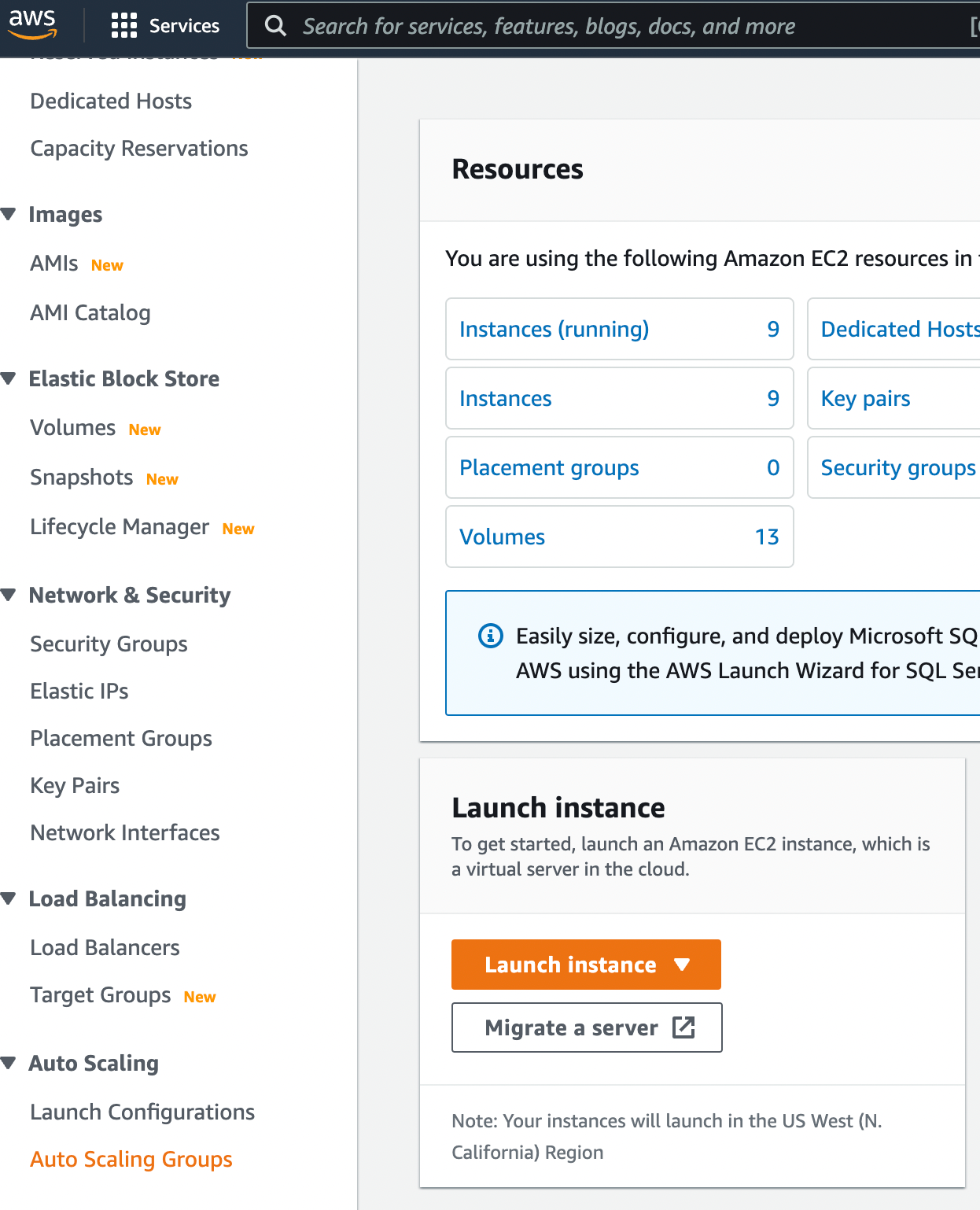
1. Navigate to the EC2 dashboard for your cluster's region on your AWS account, and select `Auto Scaling Groups` on the pane on the left.
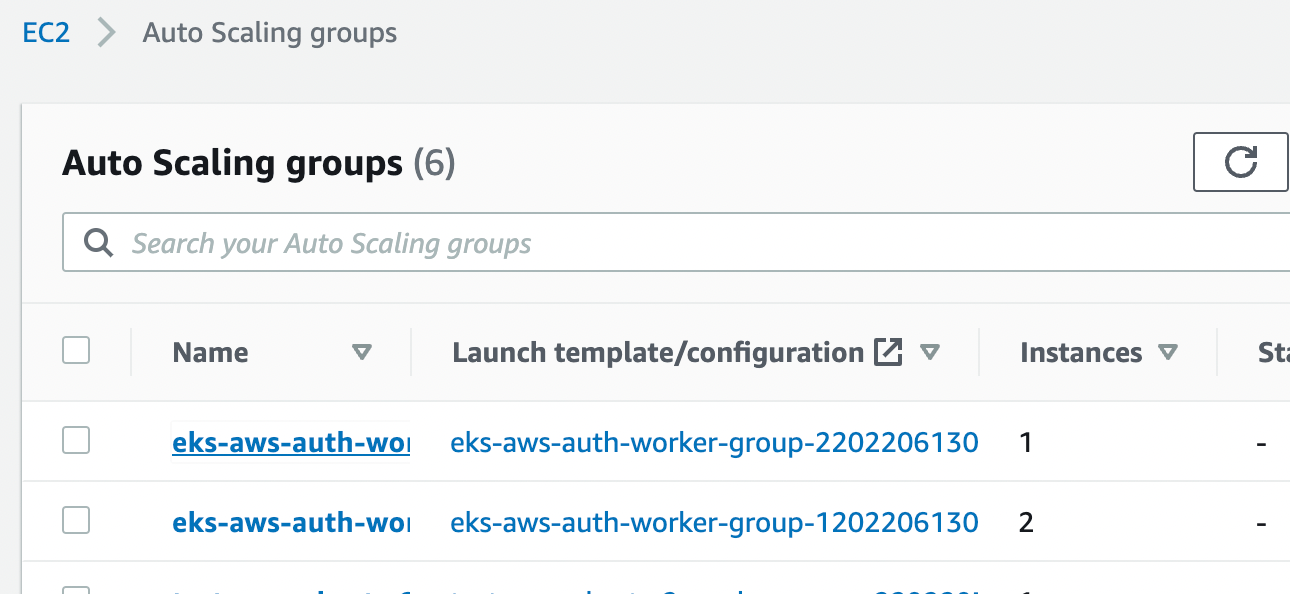
 1. Now click on the autoscaling group you'd like to modify.
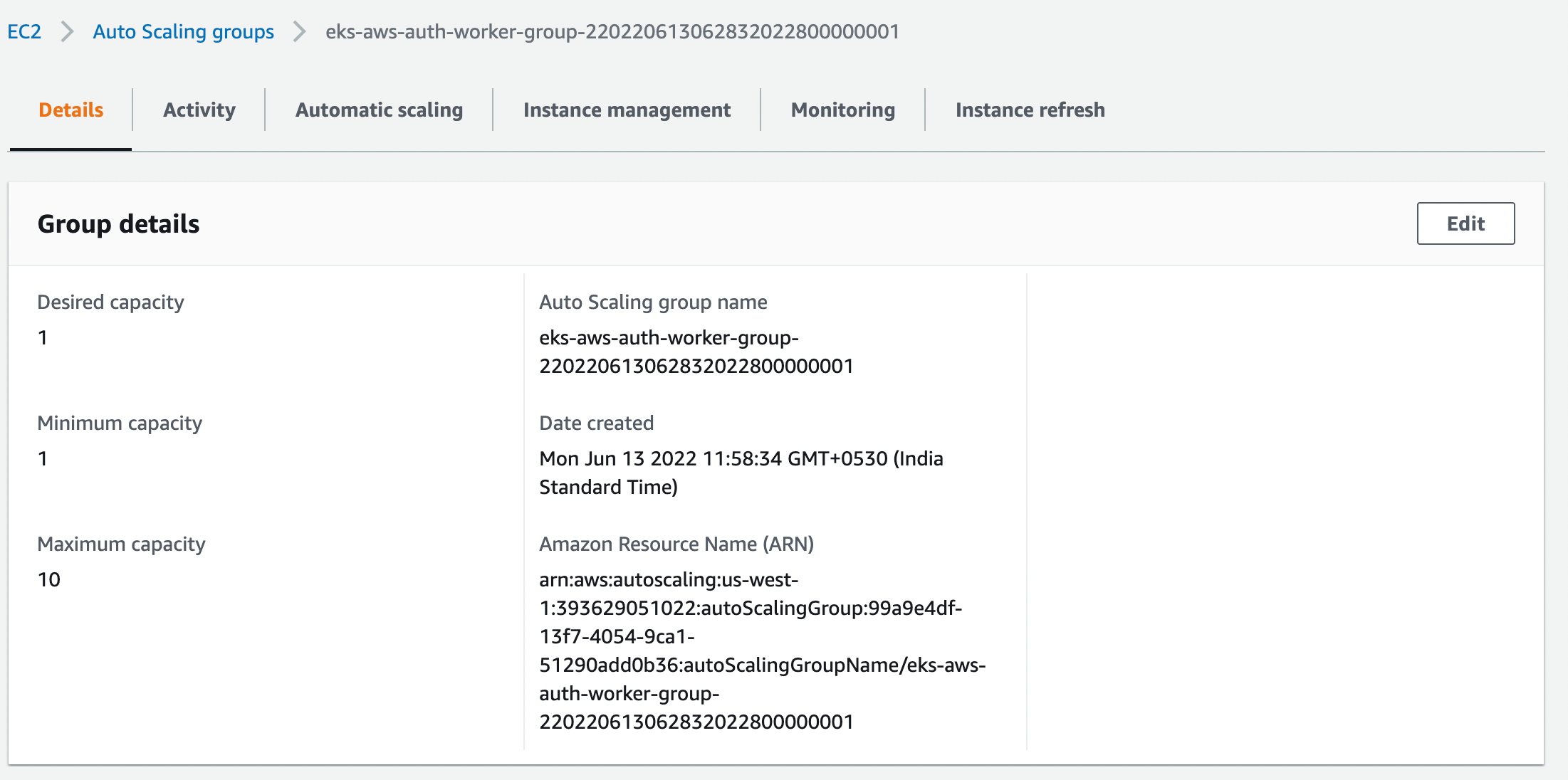
 1. In the details that open up, the first section shows the desired capacity of the autoscaling group, as well as the minimum and maximum instances the group can contain. Click `Edit`.
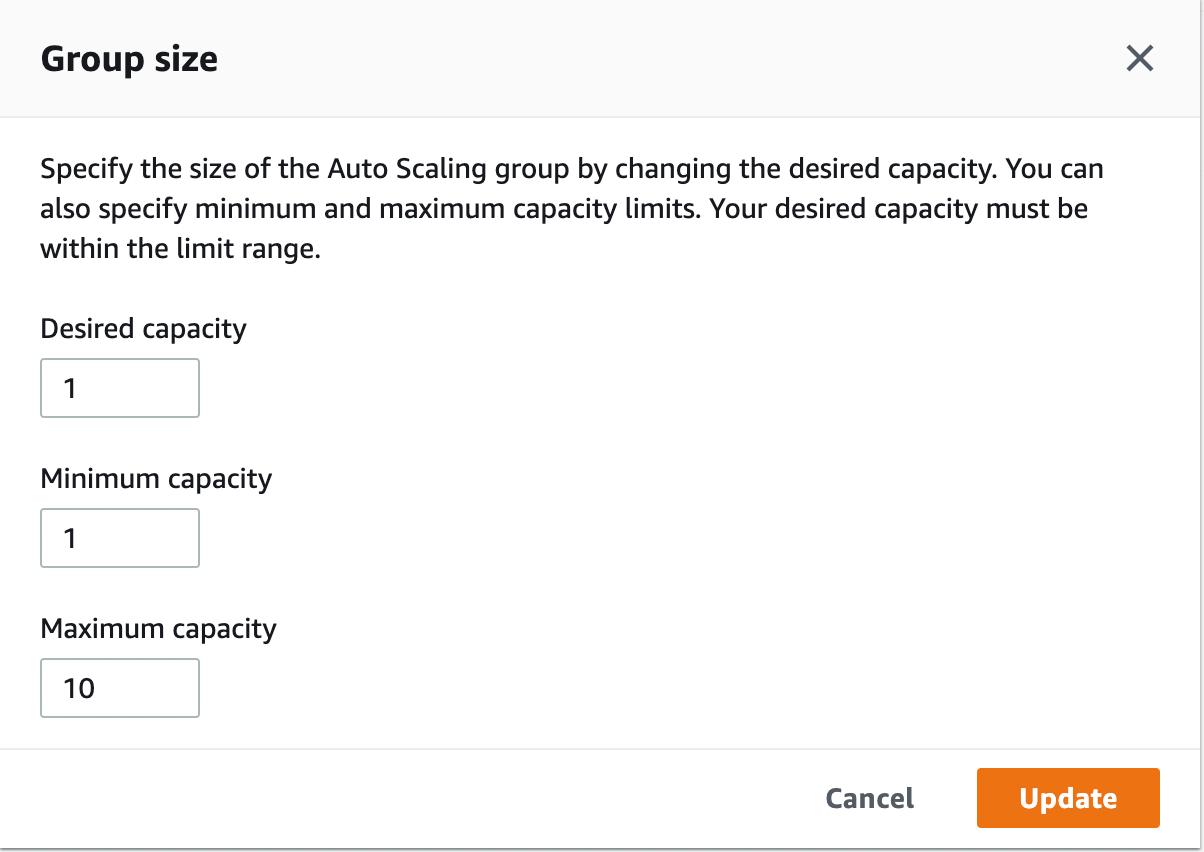
 1. A dialog box opens up, allowing you to modify the desired capcity and the minimum and maximum instances for this group. After making your changes and clicking `Update`, the autoscaling group will automatically resize itself.
 This documentation is built and hosted on [Mintlify](https://mintlify.com), a developer documentation platform.