> ## Documentation Index
> Fetch the complete documentation index at: https://docs.porter.run/llms.txt
> Use this file to discover all available pages before exploring further.
# Doppler
> Sync secrets and environment variables from Doppler into your Porter applications as a managed environment group with automatic updates on change.
Porter integrates with [Doppler](https://www.doppler.com/) so you can manage secrets in Doppler and have them automatically synced into your Porter applications. Each Doppler config is exposed in Porter as a read-only environment group that can be attached to any application in the cluster.
Under the hood, Porter installs the [External Secrets Operator](https://external-secrets.io/) on your cluster and uses your Doppler service token to pull secrets directly from the Doppler API. Secret values never persist in Porter's infrastructure.
## Enabling the Doppler integration
The Doppler integration is enabled per cluster.
1. From the Porter dashboard, navigate to the **Integrations** tab.
2. Find **Doppler** in the list and toggle it on.
Porter installs the External Secrets Operator on the selected cluster. Once enabled, you can begin adding Doppler environment groups.
## Adding a Doppler environment group
Each environment group corresponds to a single Doppler config (e.g. `dev`, `staging`, `production`).
### Generate a Doppler service token
In the Doppler dashboard, create a [service token](https://docs.doppler.com/docs/service-tokens) for the project and config you want to sync. Service tokens are read-only by default, which is the correct scope for Porter.
The token will be prefixed with `dp.st.`.
### Create the environment group in Porter
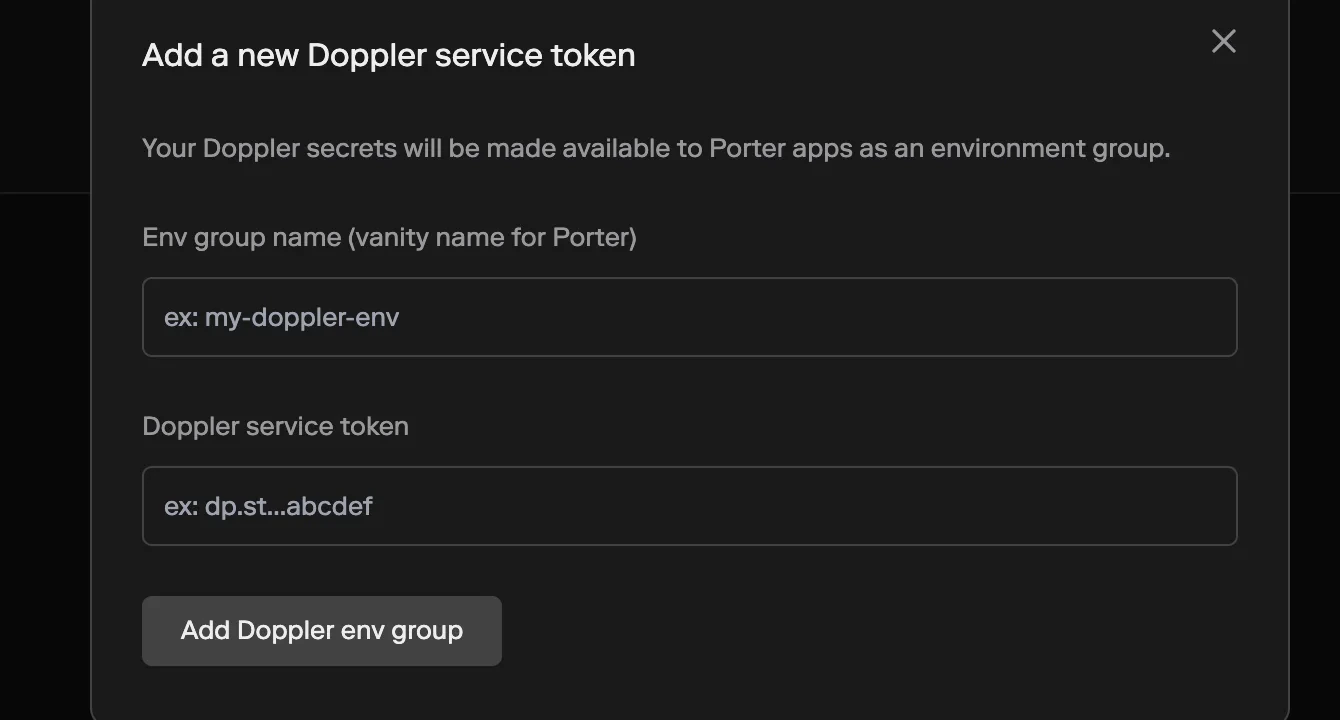
1. On the Doppler integration page in Porter, click **Add Doppler env group**.
2. Fill in the form:
* **Env group name (vanity name for Porter)** — the name you'll use to reference this environment group inside Porter (e.g. `production-doppler`).
* **Doppler service token** — the `dp.st.…` token you generated above.
3. Click **Add Doppler env group**.
 The new environment group will appear alongside your other environment groups in the **Env Groups** tab.
## Syncing to an application
Doppler environment groups work like any other Porter environment group. You can sync them to an application:
* From the dashboard, on the application's **Env Groups** tab, add the Doppler group and click **Update app**.
* From `porter.yaml`, add the group's name to the `envGroups` field:
```yaml theme={null}
version: v2
name: my-app
envGroups:
- production-doppler
services:
- name: web
type: web
run: npm start
port: 3000
```
For more on syncing, see [Environment groups](/applications/configure/environment-groups).
Doppler environment groups are **read-only** in Porter. Values are fetched from Doppler and cannot be edited from the Porter dashboard. To change a secret's value, update it in Doppler — the change will propagate to your cluster automatically.
## Rotating the service token
If you regenerate a service token in Doppler, update Porter so it can keep syncing:
1. Open the Doppler environment group in Porter.
2. Go to the **Settings** tab.
3. Under **Credentials**, click **Rotate** and paste the new service token.
## Deleting a Doppler environment group
To stop syncing a Doppler config:
1. Open the environment group in Porter.
2. Go to the **Settings** tab and click **Delete**.
You cannot delete an environment group that is synced to an application. Remove it from all synced applications first.
Deleting the environment group removes the synced Kubernetes resources from your cluster. It does **not** delete the underlying secrets in Doppler.
The new environment group will appear alongside your other environment groups in the **Env Groups** tab.
## Syncing to an application
Doppler environment groups work like any other Porter environment group. You can sync them to an application:
* From the dashboard, on the application's **Env Groups** tab, add the Doppler group and click **Update app**.
* From `porter.yaml`, add the group's name to the `envGroups` field:
```yaml theme={null}
version: v2
name: my-app
envGroups:
- production-doppler
services:
- name: web
type: web
run: npm start
port: 3000
```
For more on syncing, see [Environment groups](/applications/configure/environment-groups).
Doppler environment groups are **read-only** in Porter. Values are fetched from Doppler and cannot be edited from the Porter dashboard. To change a secret's value, update it in Doppler — the change will propagate to your cluster automatically.
## Rotating the service token
If you regenerate a service token in Doppler, update Porter so it can keep syncing:
1. Open the Doppler environment group in Porter.
2. Go to the **Settings** tab.
3. Under **Credentials**, click **Rotate** and paste the new service token.
## Deleting a Doppler environment group
To stop syncing a Doppler config:
1. Open the environment group in Porter.
2. Go to the **Settings** tab and click **Delete**.
You cannot delete an environment group that is synced to an application. Remove it from all synced applications first.
Deleting the environment group removes the synced Kubernetes resources from your cluster. It does **not** delete the underlying secrets in Doppler.