

Temporal Autoscaling
If you’re using Temporal for workflow orchestration, Porter can automatically scale your worker services based on task queue depth. This ensures your workers scale up when there’s a backlog of tasks and scale down when queues are empty.Prerequisites
Before configuring Temporal autoscaling, you’ll need:- A Temporal Cloud account
- The task queue name your workers poll from
Step 1: Create a Service Account and API Key
Porter needs an API key to monitor your task queue depth. We recommend creating a dedicated service account with minimal permissions rather than using a personal API key.Required Permission
Porter only needs Read permission on your namespace. This allows Porter to callDescribeTaskQueue to retrieve the queue backlog count for scaling decisions. Read permission does not allow starting, terminating, or modifying workflows.
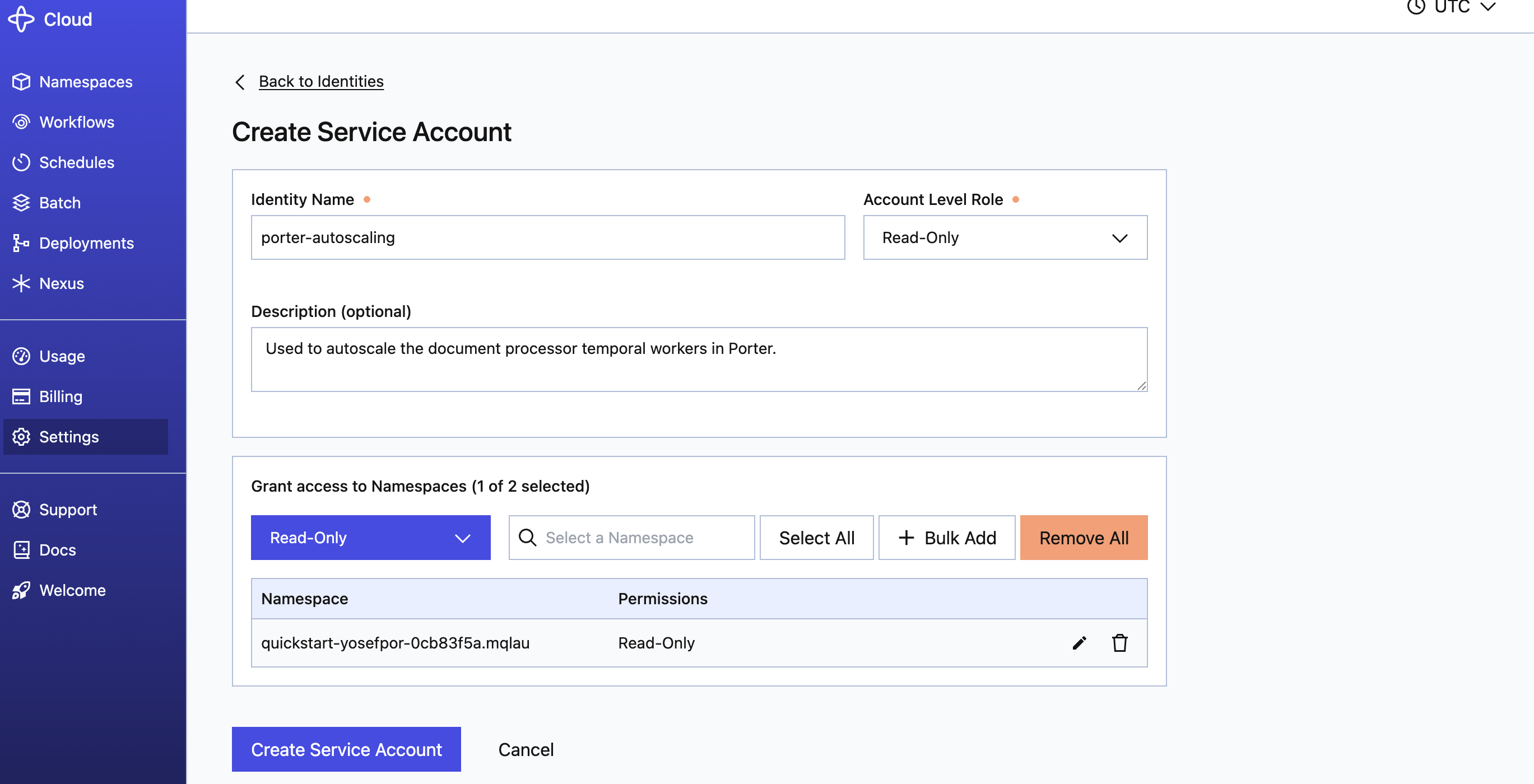
Create a Service Account
- Log in to Temporal Cloud
- Navigate to Settings → Identities
- Click Create Service Account
- Configure the service account:
- Name: A descriptive name (e.g.,
porter-autoscaling) - Description: Optional description (e.g., “Used by Porter for autoscaling workers”)
- Account Level Role: Select Read (minimum required)
- Namespace Permissions: Add your namespace with Read permission
- Name: A descriptive name (e.g.,
- Click Create Service Account
Create an API Key for the Service Account
- After creating the service account, navigate to Settings → API Keys
- Click Create API Key
- Configure the API key:
- Identity Type: Select Service Account
- Service Account: Select the service account you created (e.g.,
porter-autoscaling) - Name: A name for this key (e.g.,
porter-production) - Description: Optional description
- Expiration: Set an appropriate expiration date
- Click Generate API Key
- Copy the API key immediately — it will only be displayed once

Step 2: Create a Temporal Integration in Porter
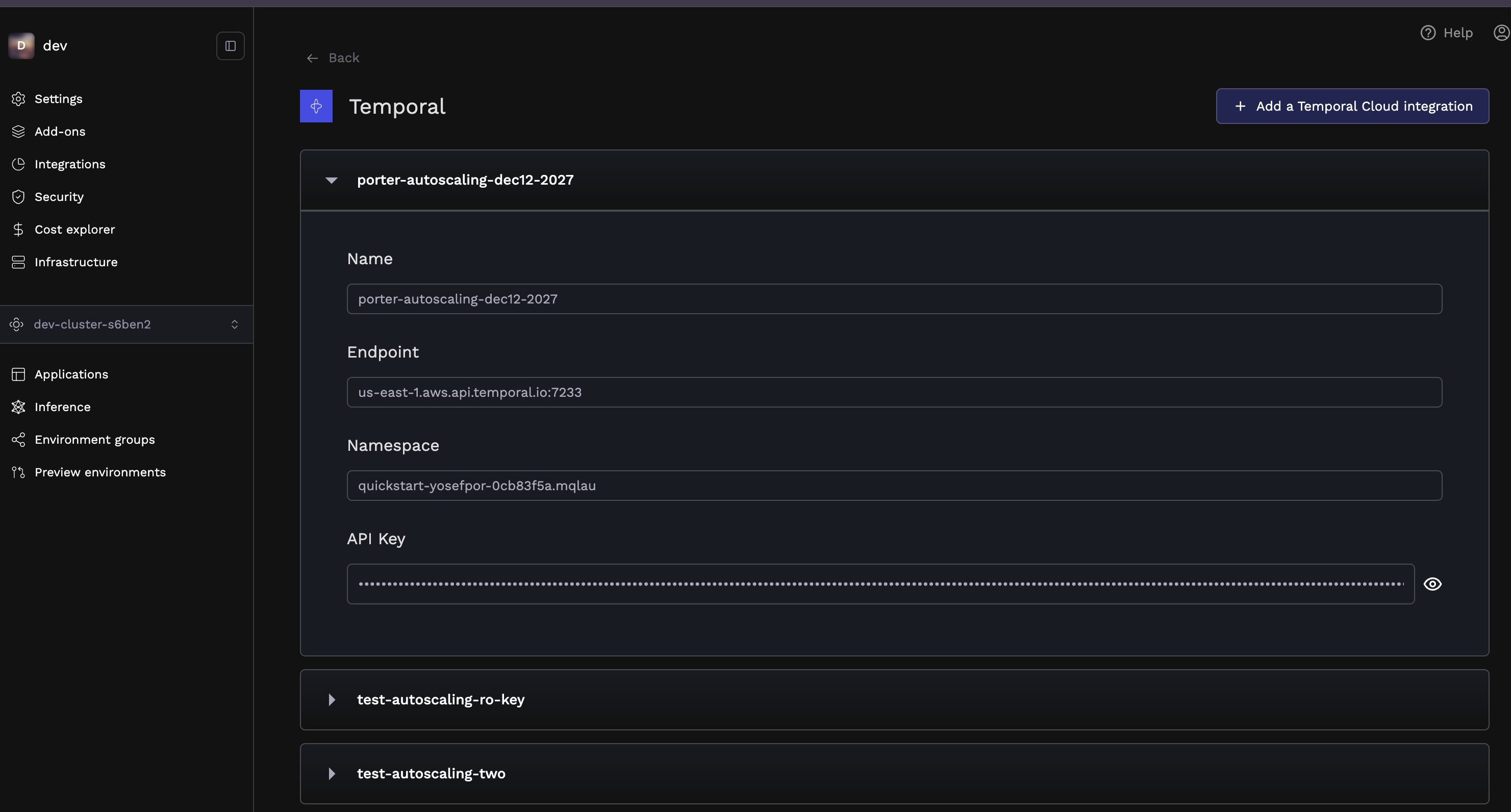
Before you can use Temporal autoscaling, you need to register your Temporal cluster as an integration in Porter.- Navigate to Integrations in the Porter dashboard
- Select the Temporal tab
- Click Add Integration
- Fill in the integration details:
- Name: A friendly name for this integration (e.g.,
production-temporal) - Endpoint: Your Temporal Cloud endpoint (e.g.,
my-namespace.a1b2c.tmprl.cloud:7233) - Namespace: Your Temporal namespace (e.g.,
my-namespace.a1b2c) - API Key: The API key you created in Step 1
- Name: A friendly name for this integration (e.g.,
- Click Add integration

Step 3: Configure Temporal Autoscaling for Your Service
With your Temporal integration set up, you can now configure autoscaling for your worker services.- Navigate to your application dashboard
- Select your worker service
- Go to the Resources tab
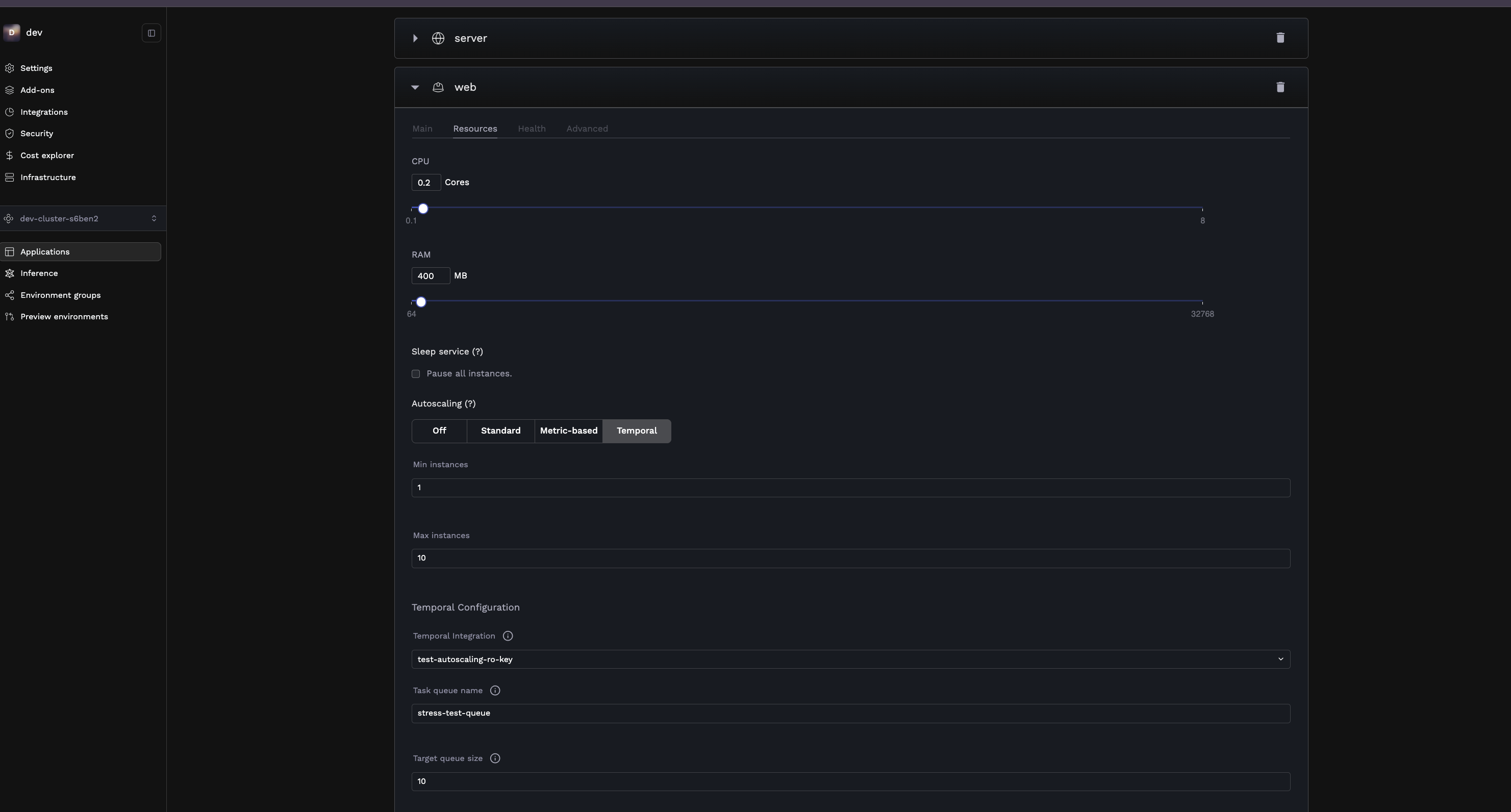
- Enable Autoscaling and select Temporal as the autoscaling type
- Configure the autoscaling settings:
- Min instances: Minimum number of worker replicas (e.g., 1)
- Max instances: Maximum number of worker replicas (e.g., 20)
- Temporal Integration: Select the integration you created in Step 2
- Task queue name: The name of the task queue your workers poll (e.g.,
my-workflow-queue) - Target queue size: The target number of tasks per worker instance
How Target Queue Size Works
The target queue size determines how Porter scales your workers. Porter calculates the desired number of replicas as:- If your queue has 100 pending tasks and target queue size is 10, Porter scales to 10 workers
- If your queue has 5 pending tasks and target queue size is 10, Porter scales to 1 worker
- If your queue is empty, Porter scales to your minimum instances
- Lower values (e.g., 5-10): More aggressive scaling, lower latency for processing tasks
- Higher values (e.g., 50-100): More conservative scaling, better resource efficiency
Example: Document Processing Pipeline
Consider a document processing system built with Temporal:Document Upload API
A web service that receives document uploads and starts Temporal workflows for processing.Document Processing Worker
A worker service that runs the document processing workflows.Autoscaling Configuration
- Min instances:
1 - Max instances:
20 - Task queue:
document-processing - Target queue size:
10
- Keep at least 1 worker running during quiet periods
- Scale up to 20 workers during document upload spikes
- Scale based on the actual queue depth, ensuring documents are processed promptly