> ## Documentation Index
> Fetch the complete documentation index at: https://docs.porter.run/llms.txt
> Use this file to discover all available pages before exploring further.
# DevOps Agent
> Use the AI-powered DevOps Agent in the Porter dashboard to debug application issues with read-only access to your cluster in real time
The DevOps Agent is currently in alpha. Features and behavior may change as we iterate on feedback. Responses are AI-generated and may not always be accurate. If you're unsure about a recommendation, reach out to support.
The DevOps Agent is an AI-powered debugging assistant built into the Porter dashboard. When something goes wrong with your app, you can open the agent sidebar and ask it what's happening in plain English. It has read-only access to your cluster, so it can investigate your infrastructure in real time without being able to modify anything. It translates what it finds into actionable answers and links you to the right docs or settings to fix the problem.
## Setup
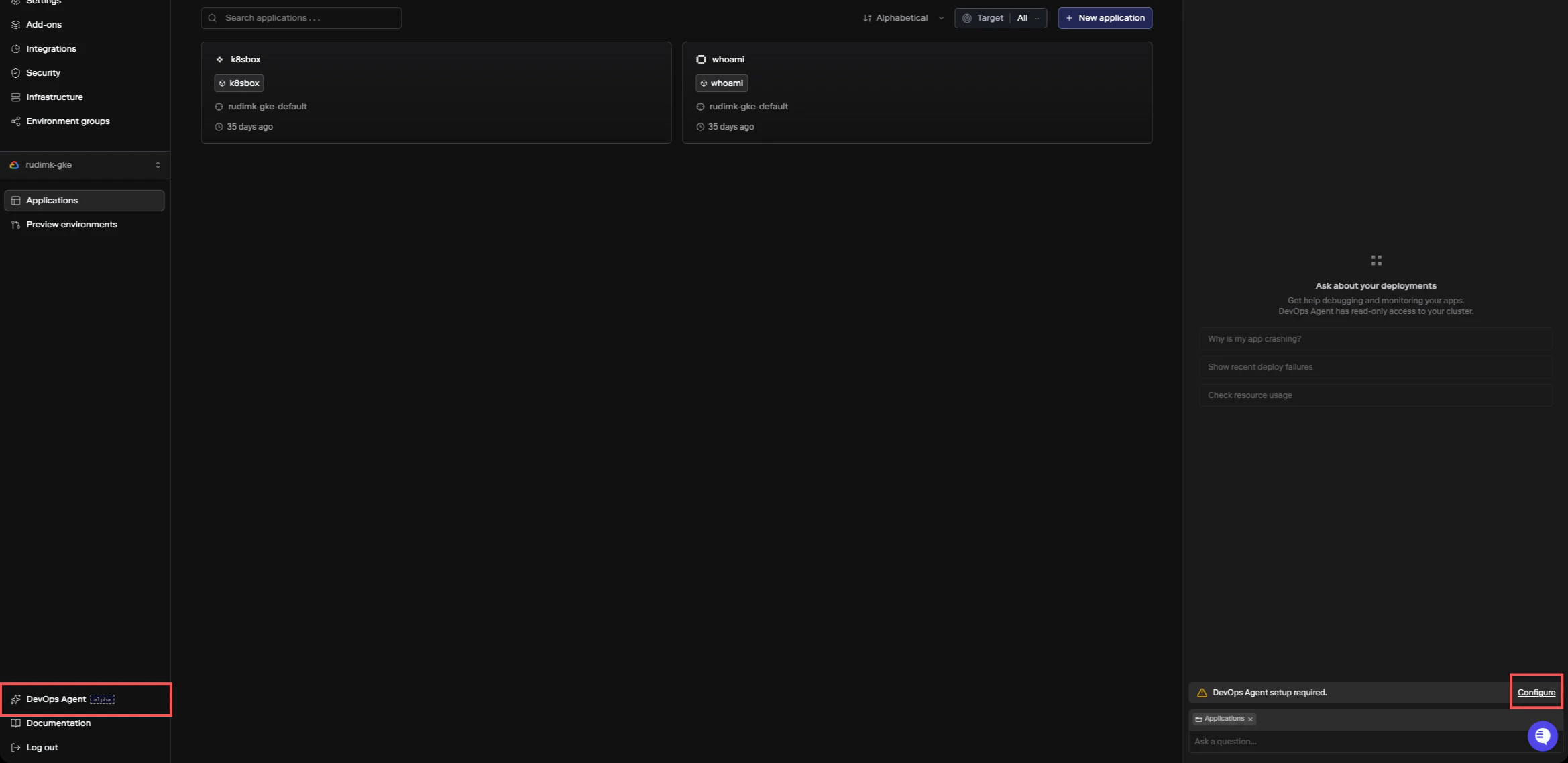
To enable the DevOps Agent, click **DevOps Agent** in the sidebar or press `⌘+I`. If the agent hasn't been configured yet, you'll see a setup prompt. Click **Configure** to open the settings panel.
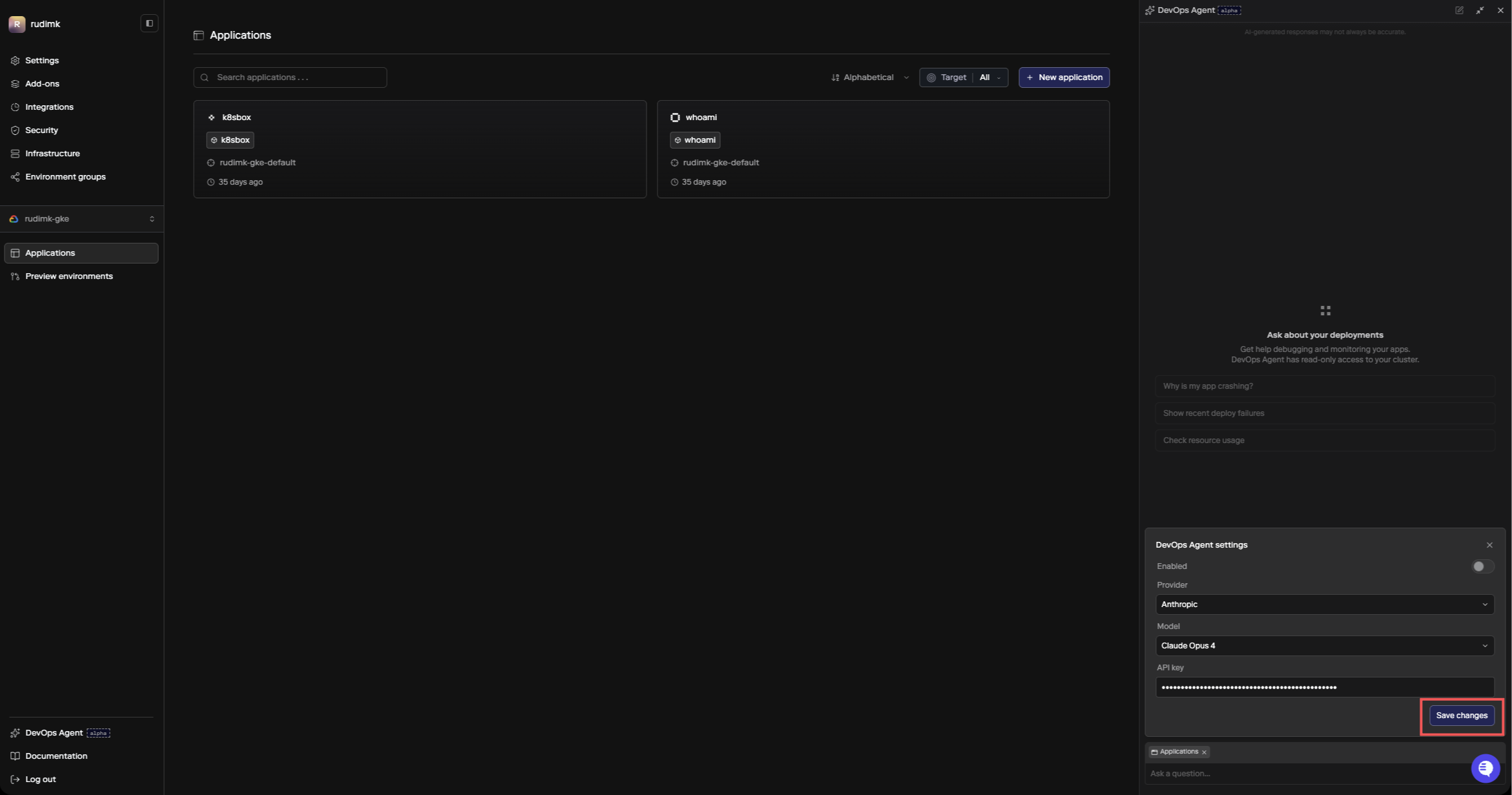
 You'll need to configure a few things:
1. **Provider** - either Anthropic (direct API) or AWS Bedrock
2. **Model** - which model to run (Claude Sonnet 4.6, Claude Opus 4.6, or Claude Haiku 4.5)
3. **API key** - your API key for the selected provider
4. **Provider URL** (Bedrock only) - your Bedrock runtime endpoint, formatted as `https://bedrock-runtime.{region}.amazonaws.com` (see [AWS Bedrock endpoints](https://docs.aws.amazon.com/general/latest/gr/bedrock.html) for available regions)
AWS Bedrock currently only supports long-term API keys generated from the Bedrock console. Short-term generated credentials are not supported.
Click **Save changes** to deploy the agent to your cluster.
You'll need to configure a few things:
1. **Provider** - either Anthropic (direct API) or AWS Bedrock
2. **Model** - which model to run (Claude Sonnet 4.6, Claude Opus 4.6, or Claude Haiku 4.5)
3. **API key** - your API key for the selected provider
4. **Provider URL** (Bedrock only) - your Bedrock runtime endpoint, formatted as `https://bedrock-runtime.{region}.amazonaws.com` (see [AWS Bedrock endpoints](https://docs.aws.amazon.com/general/latest/gr/bedrock.html) for available regions)
AWS Bedrock currently only supports long-term API keys generated from the Bedrock console. Short-term generated credentials are not supported.
Click **Save changes** to deploy the agent to your cluster.
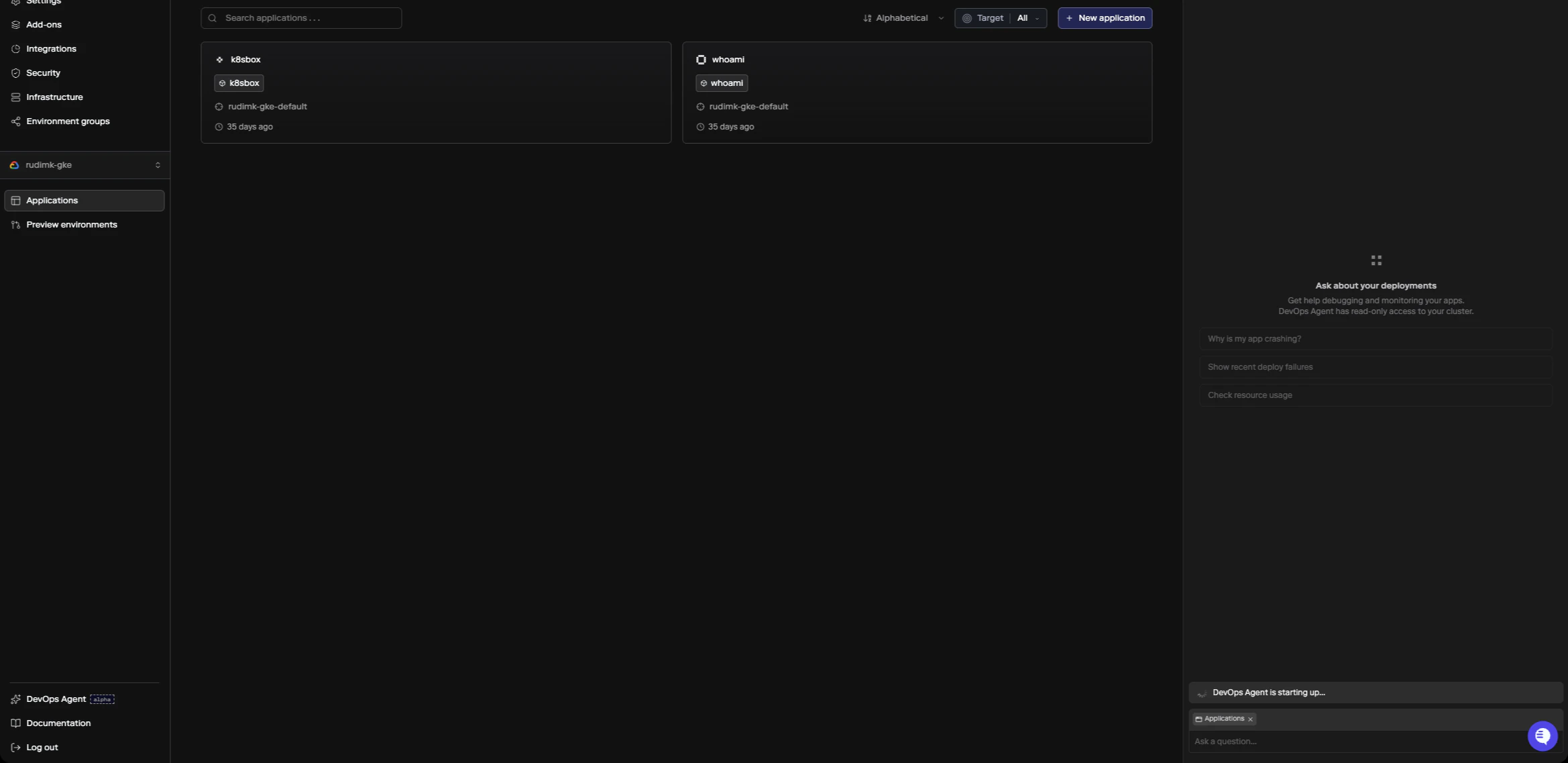
 It takes a few seconds for the agent to start up. You'll see a loading indicator while it deploys.
 The agent is configured per cluster, so you only need to set it up once per cluster. You can disable the agent at any time from the same settings panel. Disabling removes the agent from your cluster and clears the configuration.
## How It Works
The agent runs inside your cluster and has read-only access to inspect the infrastructure backing your apps, add-ons, and datastores. When you ask a question, it pulls together information from multiple sources to build a diagnosis:
* **Porter API** - deployment history, revision status, service configuration, build info
* **Live cluster state** - service logs, resource usage, events, scheduling status
* **Porter docs and knowledge base** - troubleshooting guides and configuration references
The agent is context-aware. It knows which app, add-on, or datastore you're currently viewing in the dashboard and scopes its investigation to that resource. You don't need to tell it where to look.
## Using the Agent
Open the DevOps Agent with `⌘+I` (or `Ctrl+I` on Windows/Linux), or click the agent icon in the sidebar. It's available on any app, add-on, datastore, or cluster page. Ask your question in the input field and the agent will start investigating.
As it works, you can see what it's checking in a collapsible thinking section.
The agent is configured per cluster, so you only need to set it up once per cluster. You can disable the agent at any time from the same settings panel. Disabling removes the agent from your cluster and clears the configuration.
## How It Works
The agent runs inside your cluster and has read-only access to inspect the infrastructure backing your apps, add-ons, and datastores. When you ask a question, it pulls together information from multiple sources to build a diagnosis:
* **Porter API** - deployment history, revision status, service configuration, build info
* **Live cluster state** - service logs, resource usage, events, scheduling status
* **Porter docs and knowledge base** - troubleshooting guides and configuration references
The agent is context-aware. It knows which app, add-on, or datastore you're currently viewing in the dashboard and scopes its investigation to that resource. You don't need to tell it where to look.
## Using the Agent
Open the DevOps Agent with `⌘+I` (or `Ctrl+I` on Windows/Linux), or click the agent icon in the sidebar. It's available on any app, add-on, datastore, or cluster page. Ask your question in the input field and the agent will start investigating.
As it works, you can see what it's checking in a collapsible thinking section.
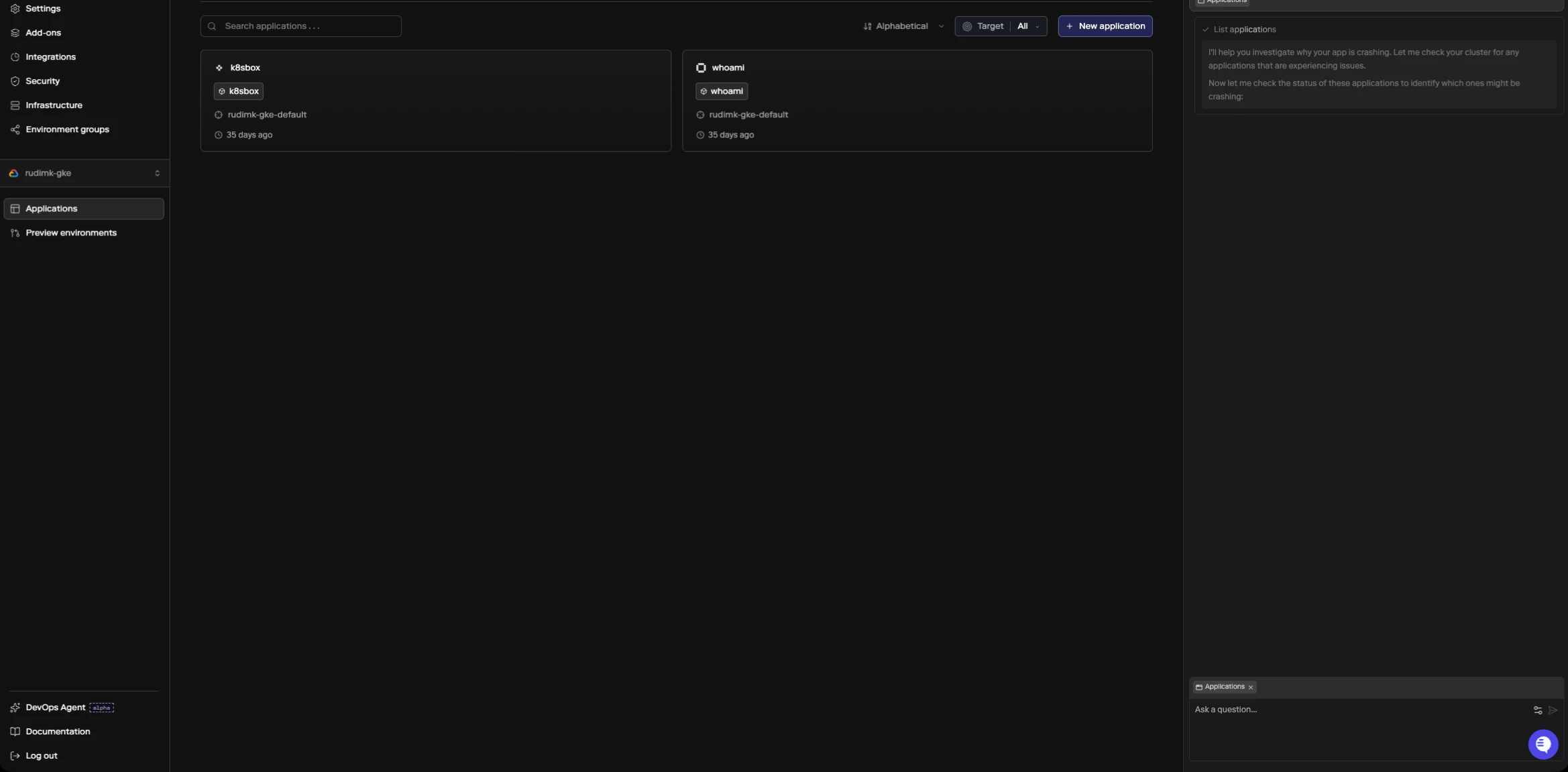 Once it has a diagnosis, it presents a concise answer with what went wrong and how to fix it, usually with links to the relevant Porter docs or dashboard settings. The agent maintains a session, so you can ask follow-up questions to dig deeper into the same issue.
### Stopping a response
If you want to stop the agent while it's responding, click the **stop** button that appears in place of the send button, or press `Escape` while the input field is focused. The agent will stop its current response and keep everything it has generated so far, including any thinking steps. Your session stays active, so you can send a new message or follow-up question right away without starting over.
If you send a message while the agent is still responding, it gets queued and will be delivered automatically after the current response finishes or is stopped.
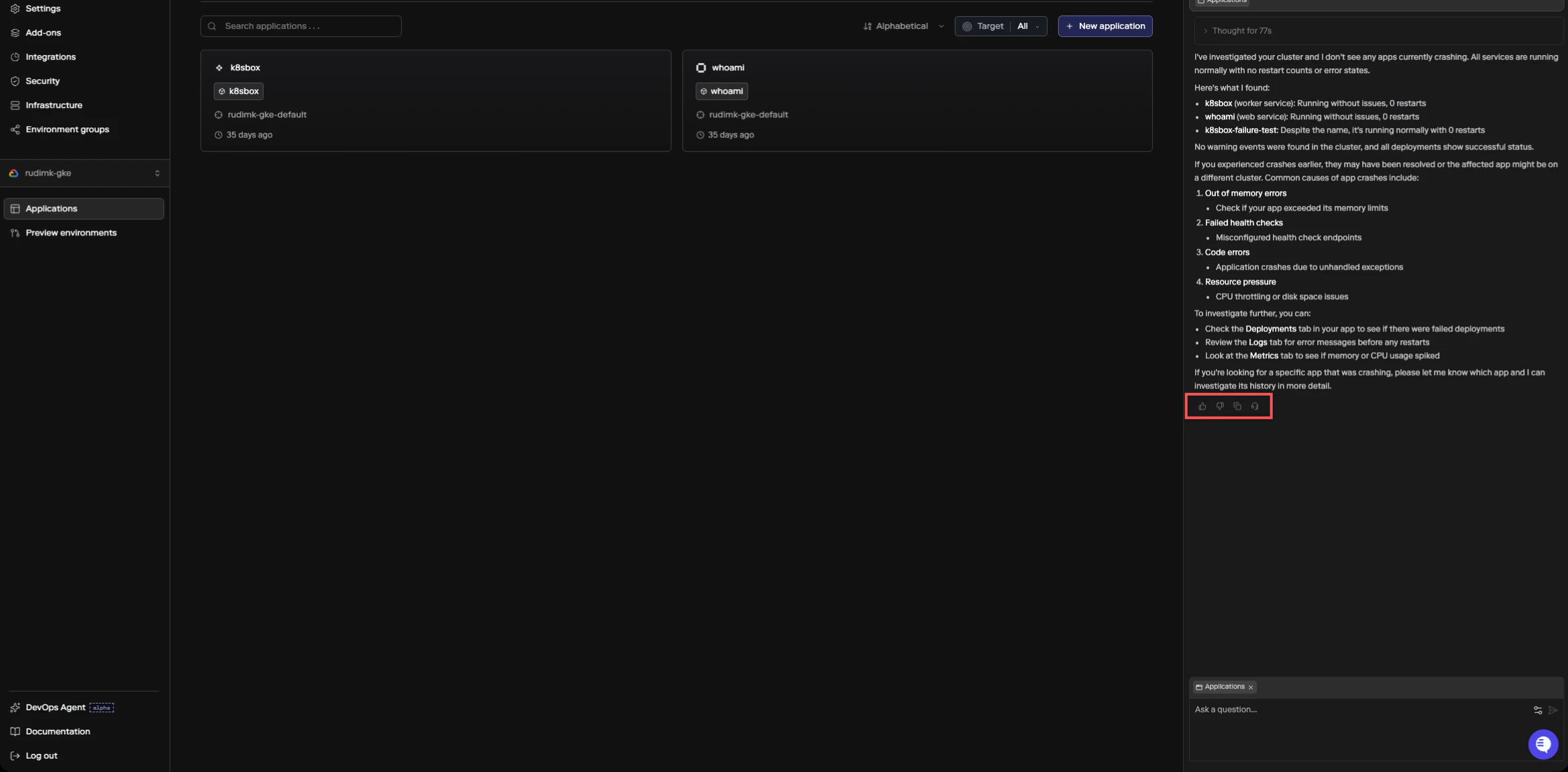
After the agent responds, you can rate the answer with thumbs up or thumbs down. If the answer wasn't helpful, you'll be prompted to select a reason (inaccurate, not helpful, or too verbose). You can also create a support ticket directly from any agent response by clicking the headset icon, which is useful if the agent's diagnosis points to something that needs human help.
Once it has a diagnosis, it presents a concise answer with what went wrong and how to fix it, usually with links to the relevant Porter docs or dashboard settings. The agent maintains a session, so you can ask follow-up questions to dig deeper into the same issue.
### Stopping a response
If you want to stop the agent while it's responding, click the **stop** button that appears in place of the send button, or press `Escape` while the input field is focused. The agent will stop its current response and keep everything it has generated so far, including any thinking steps. Your session stays active, so you can send a new message or follow-up question right away without starting over.
If you send a message while the agent is still responding, it gets queued and will be delivered automatically after the current response finishes or is stopped.
After the agent responds, you can rate the answer with thumbs up or thumbs down. If the answer wasn't helpful, you'll be prompted to select a reason (inaccurate, not helpful, or too verbose). You can also create a support ticket directly from any agent response by clicking the headset icon, which is useful if the agent's diagnosis points to something that needs human help.
 ## What You Can Ask About
The agent is good at diagnosing runtime issues with your apps and infrastructure. Some common questions:
* Why is my service restarting?
* Why did this deployment fail?
* What's using all the memory on my cluster?
* Why can't my app connect to the database?
* How do I set up autoscaling for this service?
* Why is my build failing?
It can also answer general "how do I..." questions about Porter by searching the docs and knowledge base.
## Limitations
The agent has read-only access. It can inspect your infrastructure and tell you what's wrong, but it can't make changes on your behalf. Any fixes it recommends will point you to the right place in the dashboard, CLI, or `porter.yaml` to make the change yourself.
The agent is scoped to the resource you're viewing. If you need help with a different app or cluster, navigate to that resource's page and start a new session.
## FAQ
### Does the DevOps Agent cost anything?
The agent itself is free to use on Porter. However, each query uses your own LLM API key, so you'll be billed by your provider (e.g. Anthropic) for the tokens consumed. A typical debugging session uses a moderate number of tokens across the tool calls and response.
### Can the agent affect my production workloads?
No. The agent runs as a small, isolated container on your cluster with minimal resource requirements (50m CPU request, 128Mi memory request). It has read-only access to your cluster and can't modify or interfere with your services.
## What You Can Ask About
The agent is good at diagnosing runtime issues with your apps and infrastructure. Some common questions:
* Why is my service restarting?
* Why did this deployment fail?
* What's using all the memory on my cluster?
* Why can't my app connect to the database?
* How do I set up autoscaling for this service?
* Why is my build failing?
It can also answer general "how do I..." questions about Porter by searching the docs and knowledge base.
## Limitations
The agent has read-only access. It can inspect your infrastructure and tell you what's wrong, but it can't make changes on your behalf. Any fixes it recommends will point you to the right place in the dashboard, CLI, or `porter.yaml` to make the change yourself.
The agent is scoped to the resource you're viewing. If you need help with a different app or cluster, navigate to that resource's page and start a new session.
## FAQ
### Does the DevOps Agent cost anything?
The agent itself is free to use on Porter. However, each query uses your own LLM API key, so you'll be billed by your provider (e.g. Anthropic) for the tokens consumed. A typical debugging session uses a moderate number of tokens across the tool calls and response.
### Can the agent affect my production workloads?
No. The agent runs as a small, isolated container on your cluster with minimal resource requirements (50m CPU request, 128Mi memory request). It has read-only access to your cluster and can't modify or interfere with your services.