> ## Documentation Index
> Fetch the complete documentation index at: https://docs.porter.run/llms.txt
> Use this file to discover all available pages before exploring further.
# HTTPS certificates and custom domains
> Configure custom domains with automatic Let's Encrypt SSL certificate issuance and renewal for Porter web services on AWS, GCP, and Azure
Porter secures all Web services with SSL certificates issued by [Let's Encrypt](https://letsencrypt.org/). Porter will automatically handle the issuance and renewal of your certificates.
## Porter Domains
Porter generates placeholder domains for all Web services. These placeholder domains follow the format of `*.onporter.run`. While these domains can be used in production, we highly recommend attaching a custom domain to your production web services.
## Custom Domains
Setting up a custom domain involves two steps: setting up a DNS record to point to that domain, and then configuring your Web service to listen on that custom domain:
* [DNS Setup](#dns-setup)
* [Deploy your Application](#deploying-on-the-custom-domain)
## DNS Setup[](#dns-setup "Direct link to heading")
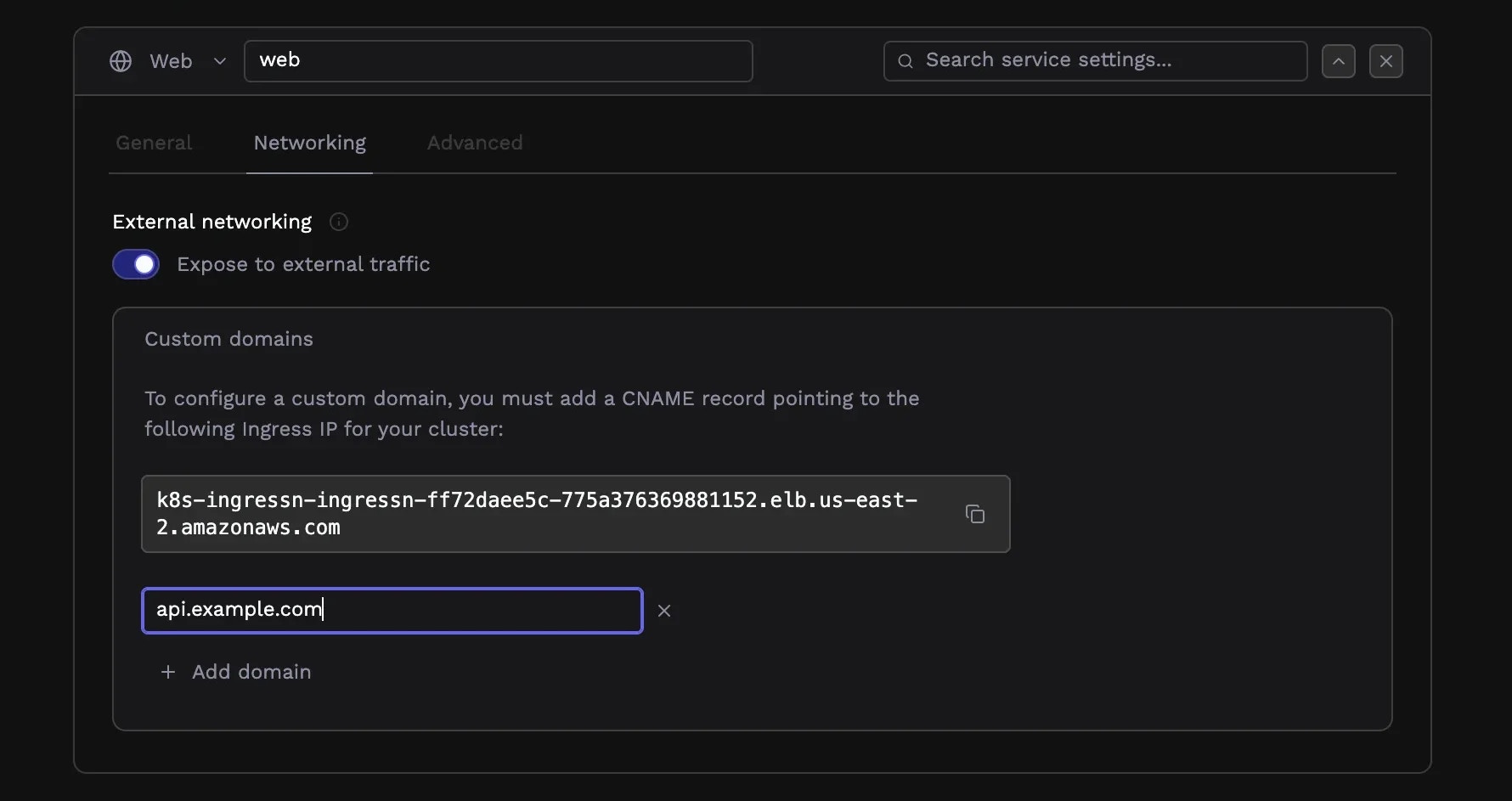
You must first find the DNS name assigned to the load balancer of your cluster. This can be found under the **Networking** tab of your Web Service:
 The DNS records that need to be created for your Web service vary slightly depending on the cloud provider and the DNS provider you are using.
Copy this address, as you will need it to create the DNS record.
### Google Cloud and Azure
On Google Cloud and Azure, the load balancer that sits in front of your infrastructure has a static IP address.
Therefore, you have to create an `A` record in your DNS provider that points to that static IP address.
The name of the record should be the subdomain you want to use (e.g. `app.mydomain.com`),
and the value should be the IP address of the load balancer that you copied above.
### Amazon Web Services[](#amazon-web-services "Direct link to heading")
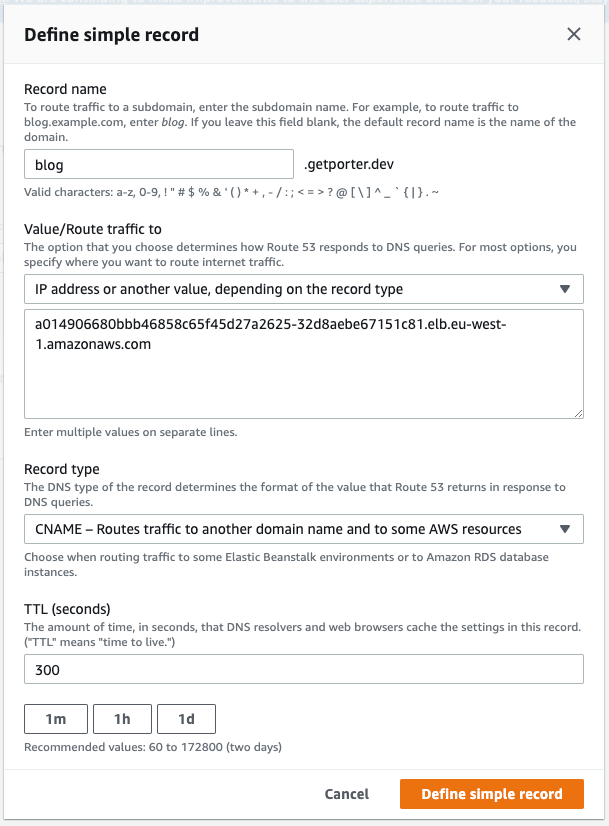
For clusters deployed on AWS, you need to create a `CNAME` record that points at the DNS name for your load balancer.
Please follow instructions below, based on the type of domain you are creating:
* Subdomain -> domains of the format `*.porter.run` such as `cloud.porter.run`, `myapp.porter.run`
* Apex domain -> top level domains, of the format `porter.run`
Create a `CNAME` record on your DNS provider for your desired subdomain, which points to the load balancer URL you have copied above. Make sure you exclude the protocol `http://` and any trailing `/` from the URL string. For example, on Route 53, this looks like the following:
Because AWS creates a load balancer that is assigned a domain name, rather than an IP address, you must use a DNS provider which allows for `ALIAS` records, since `CNAME` records are not supported for apex domains. Create an `ALIAS` record for your root domain which points to the load balancer address that you copied above.
If you've purchased your domain through a service like GoDaddy that does not support `ALIAS` records, we recommend that you switch your service to Route 53. Please follow [this guide](https://docs.aws.amazon.com/Route53/latest/DeveloperGuide/MigratingDNS.html) to manage your existing domains with Route 53, and then see the instructions below for Route 53 setup.
#### Route 53 Instructions[](#route-53-instructions "Direct link to heading")
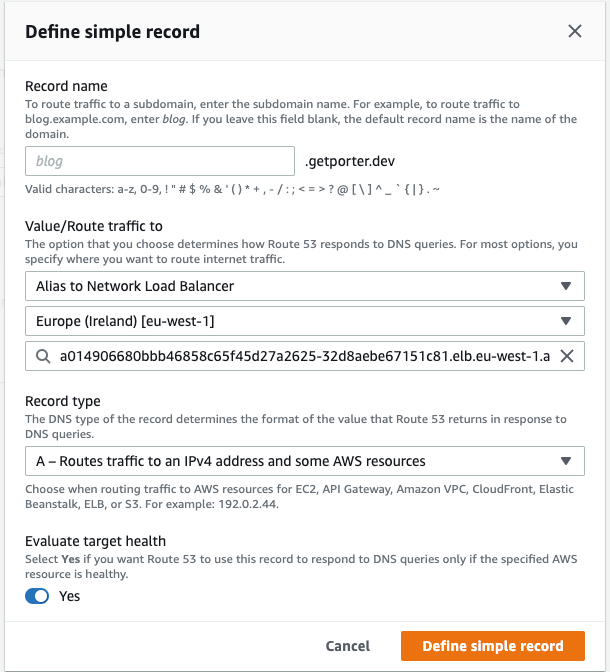
When creating a new record, leave the Record name empty and select the **Alias to Network Load Balancer** option. After you choose the region your EKS cluster is provisioned in, you will be able to select the DNS name of the load balancer that was displayed from the Porter dashboard. Set Record type as **A record** and create the record.
Once DNS has propagated, you can now [deploy your application using the custom domain](#deploying-on-the-custom-domain)!
After you complete the previous steps, it might take up to 30 minutes for DNS records to fully propagate. Please wait before deploying your applications until the DNS propagation is complete. You can check this using tools like [dnschecker.org](https://dnschecker.org) or running `nslookup `.
## Deploying on the Custom Domain[](#deploying-on-the-custom-domain "Direct link to heading")
Once the DNS record changes have been propagated, you will be able to attach the custom domain to your application.
Click on **Add Custom Domain**, input the custom domain you have just pointed to the load balancer, then hit deploy.
In a few minutes, you will be able to view the application on the custom domain, secured with an SSL certificate.
The DNS records that need to be created for your Web service vary slightly depending on the cloud provider and the DNS provider you are using.
Copy this address, as you will need it to create the DNS record.
### Google Cloud and Azure
On Google Cloud and Azure, the load balancer that sits in front of your infrastructure has a static IP address.
Therefore, you have to create an `A` record in your DNS provider that points to that static IP address.
The name of the record should be the subdomain you want to use (e.g. `app.mydomain.com`),
and the value should be the IP address of the load balancer that you copied above.
### Amazon Web Services[](#amazon-web-services "Direct link to heading")
For clusters deployed on AWS, you need to create a `CNAME` record that points at the DNS name for your load balancer.
Please follow instructions below, based on the type of domain you are creating:
* Subdomain -> domains of the format `*.porter.run` such as `cloud.porter.run`, `myapp.porter.run`
* Apex domain -> top level domains, of the format `porter.run`
Create a `CNAME` record on your DNS provider for your desired subdomain, which points to the load balancer URL you have copied above. Make sure you exclude the protocol `http://` and any trailing `/` from the URL string. For example, on Route 53, this looks like the following:

Because AWS creates a load balancer that is assigned a domain name, rather than an IP address, you must use a DNS provider which allows for `ALIAS` records, since `CNAME` records are not supported for apex domains. Create an `ALIAS` record for your root domain which points to the load balancer address that you copied above.
If you've purchased your domain through a service like GoDaddy that does not support `ALIAS` records, we recommend that you switch your service to Route 53. Please follow [this guide](https://docs.aws.amazon.com/Route53/latest/DeveloperGuide/MigratingDNS.html) to manage your existing domains with Route 53, and then see the instructions below for Route 53 setup.
#### Route 53 Instructions[](#route-53-instructions "Direct link to heading")
When creating a new record, leave the Record name empty and select the **Alias to Network Load Balancer** option. After you choose the region your EKS cluster is provisioned in, you will be able to select the DNS name of the load balancer that was displayed from the Porter dashboard. Set Record type as **A record** and create the record.

Once DNS has propagated, you can now [deploy your application using the custom domain](#deploying-on-the-custom-domain)!
After you complete the previous steps, it might take up to 30 minutes for DNS records to fully propagate. Please wait before deploying your applications until the DNS propagation is complete. You can check this using tools like [dnschecker.org](https://dnschecker.org) or running `nslookup `.
## Deploying on the Custom Domain[](#deploying-on-the-custom-domain "Direct link to heading")
Once the DNS record changes have been propagated, you will be able to attach the custom domain to your application.
Click on **Add Custom Domain**, input the custom domain you have just pointed to the load balancer, then hit deploy.
In a few minutes, you will be able to view the application on the custom domain, secured with an SSL certificate.